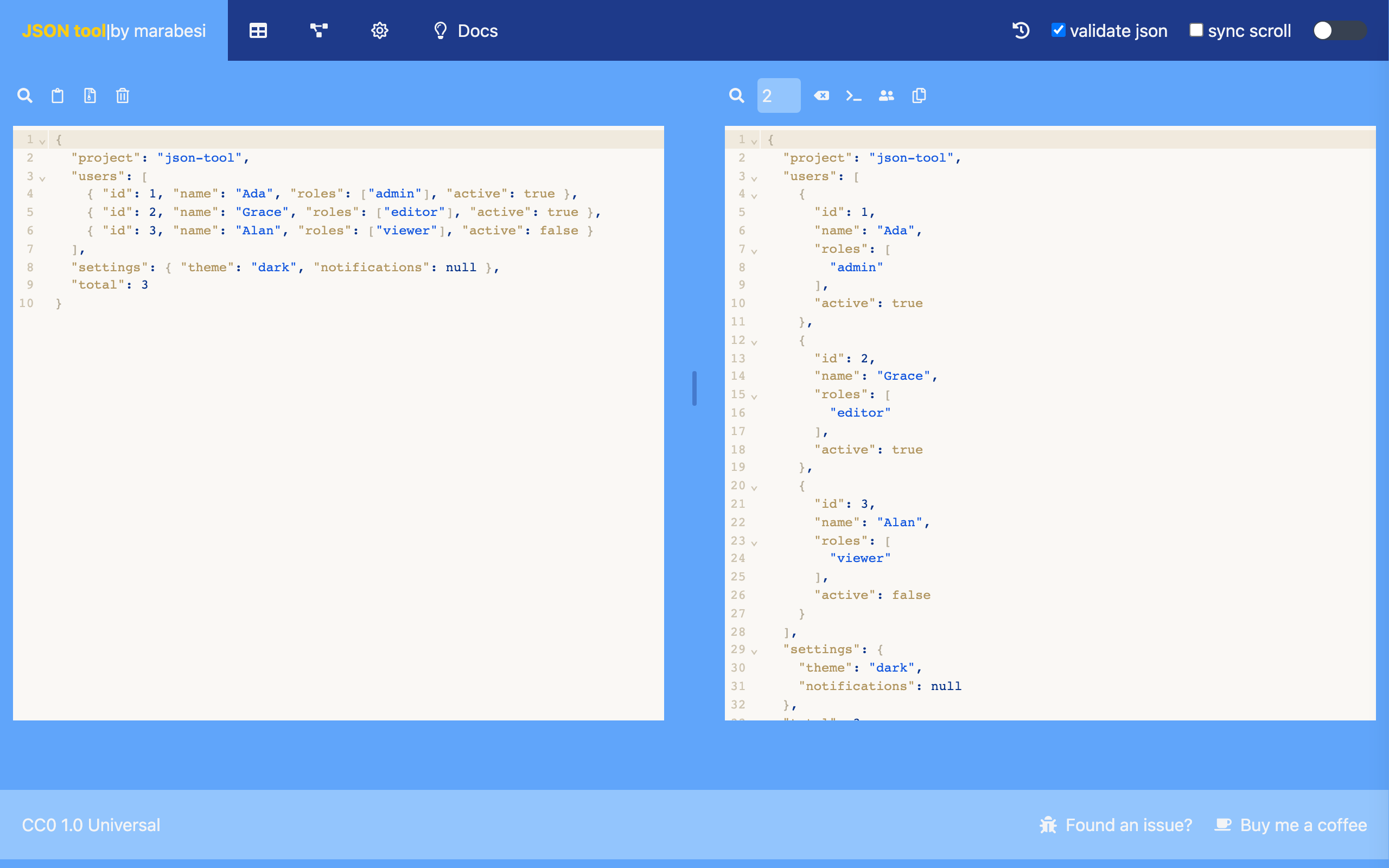
Home (editor)
The home view is where you format and validate JSON. It has two editors side by side: the working editor on the left and the result editor on the right. Each editor has its own toolbar above it.
Formatting
- Paste or type your JSON in the editor on the left.
- The result editor shows the formatted JSON as you type. Formatting runs in a Web Worker, so the interface stays responsive even with large documents.
- A loading indicator is shown while the formatting is in progress.
Validation
- Turn on the validate json toggle in the header to be warned about invalid JSON.
- When the content is not valid JSON, an
invalid jsonmessage is shown below the editors. - Validation uses the standard
JSON.parserules.
Editors
Search inside an editor
Each toolbar has a search button that opens the CodeMirror search panel in the corresponding editor. The search supports plain text and regular expressions.
Resizing the editors
Drag the divider between the editors to resize them, or focus it and press the left/right arrow keys. The divider position is kept while you switch views.
Sync scroll
Turn on sync scroll in the header to keep both editors on the same relative line while scrolling.
Left toolbar (working editor)
| Control | Description |
|---|---|
| Search | Open the search panel inside the JSON editor |
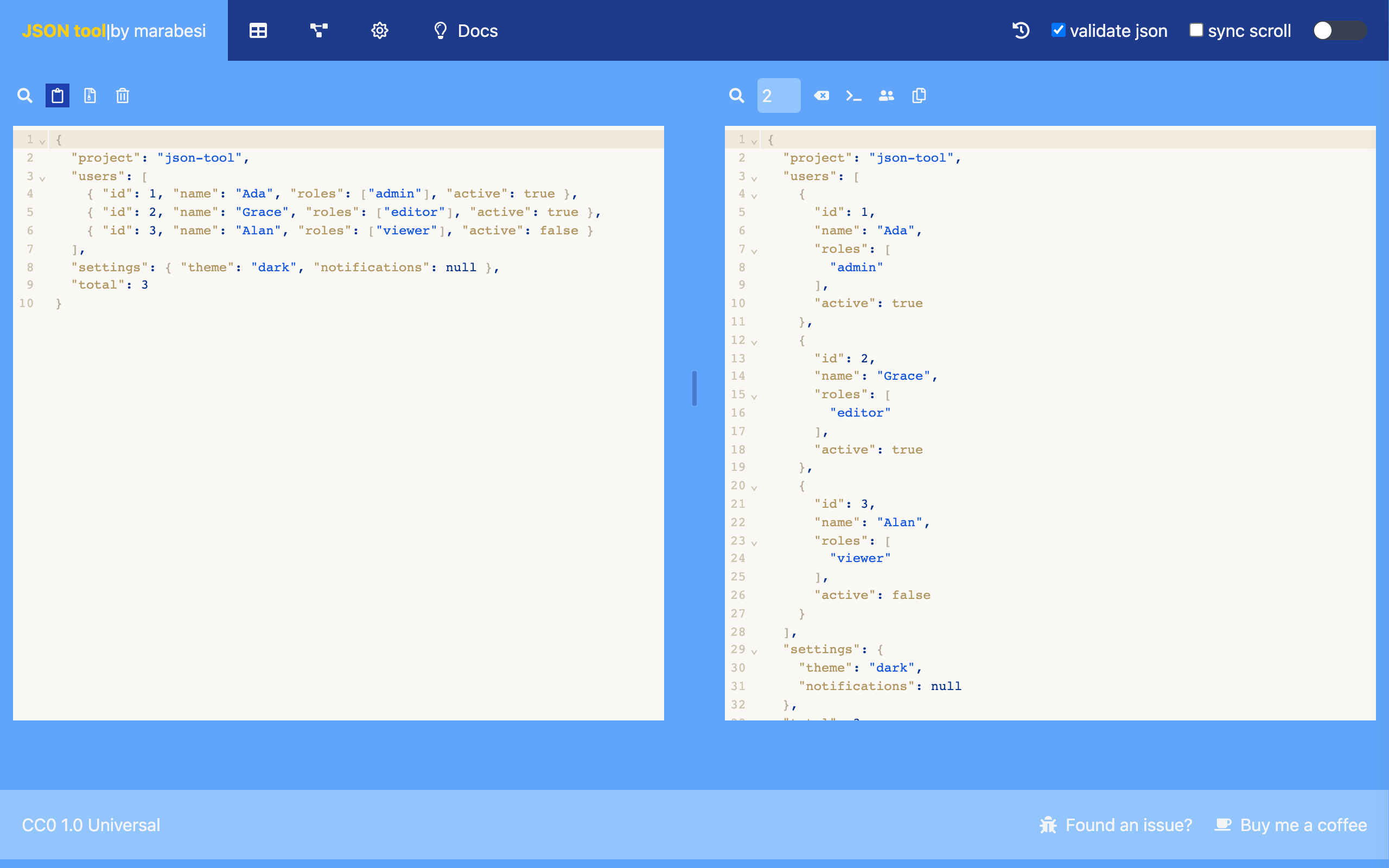
| Paste from clipboard | Paste the clipboard content into the editor |
| Upload JSON file | Select a .json file and load it |
| Delete all | Clear the editors |
The paste button is disabled when the browser does not support the Clipboard API.
Right toolbar (result editor)
| Control | Description |
|---|---|
| Search | Open the search panel inside the result editor |
| Space tabulation | Set the indentation width in spaces (2 by default) |
| Clean spaces | Remove all spaces |
| Clean new lines | Remove all line breaks |
| Clean new lines and spaces | Remove line breaks and spaces |
| Copy JSON | Copy the formatted result to the clipboard |
The copy button is disabled when the browser does not support the Clipboard API. All the toolbar buttons show their purpose as a tooltip when you hover over them.
History
When the JSON History feature is enabled (default), json-tool records the JSON you have used. Open the drawer from the header to see the entries:
- Send to editor — put the entry back into the working editor.
- Copy — copy the full content of the entry to the clipboard.
The drawer shows a short snippet of each entry and the full content is stored for the actions above. It is empty until you start using the editor.
json-tool also ships with a dark theme, switched from the header: